TSL2561 Low power, digital luminosity (light) sensor
Introduction

The TSL2561 luminosity sensor is an advanced digital light sensor, ideal for use in a wide range of light situations. Compared to low cost CdS cells, this sensor is more precise, allowing for exact Lux calculations and can be configured for different gain/timing ranges to detect light ranges from up to 0.1 - 40,000+ Lux on the fly. The best part of this sensor is that it contains both infrared and full spectrum diodes! That means you can seperately measure infrared, full-spectrum or human-visible light. Most sensors can only detect one or the other, which does not accurately represent what human eyes see (since we cannot perceive the IR light that is detected by most photo diodes)

The sensor has a digital (i2c) interface. You can select one of three addresses so you can have up to three sensors on one board - each with a different i2c address. The built in ADC means you can use this with any microcontroller, even if it doesn't have analog inputs. The current draw is extremely low, so its great for low power data-logging systems. about 0.5mA when actively sensing, and less than 15 uA when in powerdown mode.

Pick one up today from the Adafruit shop!

Details!

Wiring

This is an easy sensor to get started with. The breakout board comes with a 6-pin header strip that you can use to plug the sensor into a breadboard or perfboard. Simply plug the header into a solderless breadboard with the long pins down and short pins up. Place the sensor on top so each pad has a header pin in it and solder the two together

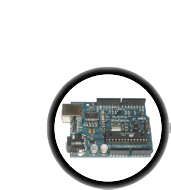
Next we will connect it to our microcontroller. In this case we'll be using an Arduino but nearly any microcontroller can be used by adapting our code

Connect the VCC pin to a 3.3V power source. The sensor cannot be used with anything higher than 3.3V so don't use a 5V supply! Connect GND to the ground pin.

Connect the i2c SCL clock pin to your i2c clock pin. On the classic Arduino Uno/Duemilanove/Diecimila/etc this is Analog pin #5

Connect the i2c SDA data pin to your i2c data pin. On the classic Arduino Uno/Duemilanove/Diecimila/etc this is Analog pin #4

Unfortunately, the i2c lines on most microcontrollers are fixed so you're going to have to stick with those pins.

You may be wondering, how is it OK to connect a 3.3V chip like the TSL2561 to 5.0V data pins like the Arduino? Isn't that bad? Well, in this specific case its OK. I2c uses pullup lines to the 3.3V power pin, so the data is actually being sent at 3.3V. As long as all the sensors/device on the i2c bus are running on 3.3V power, we're fine.

However, don't use a 5.0v powered i2c device (like the DS1307) with pullups at the same time as a 3.3V device like the TSL2561! If you want to use this sensor with a datalogger that uses the DS1307, remove any/all of the pullup resistors from the DS1307 SDA/SCL pins. The pullups built into the TSL2561 will then be active and keep the voltage at 3.3V which is safe for both the RTC and the sensor.

You don't need to connect the ADDR (i2c address change) or INT (interrupt output) pins.

The ADDR pin can be used if you have an i2c address conflict, to change the address. Connect it to ground to set the address to 0x29, connect it to 3.3V (vcc) to se t the address to 0x49 or leave it floating (unconnected) to use address 0x39.

The INT pin is an ouput from the sensor used when you have the sensor configured to signal when the light level has changed. We don't have that code written in this tutorial so you don't have to use it. If you do end up using it, use a 10K-100K pullup from INT to 3.3V (vcc)

Arduino Library & Example Code

To use this sensor and calculate Lux, there's a lot of very hairy and unpleasant math. You can check out the math in the datasheet but really, its not intuitive or educational - its just how the sensor works. So we took care of all the icky math and wrapped it up into a nice Arduino library. You can download the library from github

To download & Install the library click the DOWNLOADS button in the top right corner, rename the uncompressed folder TSL2561. Check that the TSL2561 folder contains TSL2561.cpp and TSL2561.h
Place the TSL2561 library folder your <arduinosketchfolder>/libraries/ folder. You may need to create the libraries subfolder if its your first library. Restart the IDE.

Now you can run the File->Examples->TSL2561->tsl2561 example program which will read and calculate the lux readings for you

Open up the serial monitor at 9600 baud to see the measurements. Use a lamp or your hand to illuminate/shade the sensor to see the values change.

The library is fairly simple to use. The first part of the code allows you to define how you have the ADDR pin set up. If you dont have anything connected, leave it as is. If you have an address conflict you can connect the ADDR bin to ground or 3.3V to change around the address. This will also let you have up to 3 sensors on a single i2c bus

// The address will be different depending on whether you let
// the ADDR pin float (addr 0x39), or tie it to ground or vcc. In those cases
// use TSL2561_ADDR_LOW (0x29) or TSL2561_ADDR_HIGH (0x49) respectively
TSL2561 tsl(TSL2561_ADDR_FLOAT); 

Next up, you will want to configure the sensor with the gain and integration time. You can have either a gain of 0 (no extra gain, good in low light situtations) or a gain of 16 which will boost up the light in dim situtations. You can also change the integration time, this is how long it will collect light data for. The longer the collection time, the more light it will detect. If you have bright lights, set the integration time to 13ms. If you have dim lights, set to 101ms and for very dim situations 402ms. You can change these settings on the fly as your light situation changes

  // You can change the gain on the fly, to adapt to brighter/dimmer light situations
  //tsl.setGain(TSL2561_GAIN_0X);         // set no gain (for bright situtations)
  tsl.setGain(TSL2561_GAIN_16X);      // set 16x gain (for dim situations)
  
  // Changing the integration time gives you a longer time over which to sense light
  // longer timelines are slower, but are good in very low light situtations!
  tsl.setTiming(TSL2561_INTEGRATIONTIME_13MS);  // shortest integration time (bright light)
  //tsl.setTiming(TSL2561_INTEGRATIONTIME_101MS);  // medium integration time (medium light)
  //tsl.setTiming(TSL2561_INTEGRATIONTIME_402MS);  // longest integration time (dim light)

You can also change which type of light you want to detect. The sensor has two diodes. One for full spectrum and one for IR. You can measure either one or subtract IR from the full spectrum to get 'visible' light

When you're ready to get your measurement, call getLuminosity with any of the following three options: TSL2561_VISIBLE, TSL2561_INFRARED, or TSL2561_FULLSPECTRUM. If you select VISIBLE that will give you the difference between the two diode readings.

  // Simple data read example. Just read the infrared, fullspecrtrum diode 
  // or 'visible' (difference between the two) channels.
  // This can take 13-402 milliseconds! Uncomment whichever of the following you want to read
  uint16_t x = tsl.getLuminosity(TSL2561_VISIBLE);     
  //uint16_t x = tsl.getLuminosity(TSL2561_FULLSPECTRUM);
  //uint16_t x = tsl.getLuminosity(TSL2561_INFRARED);

If you want to calculate lux, use the second code example below which will read both diodes at the same time (16 bits each smooshed together into a 32 bit variable). You can pass those raw readings into calculateLux which will do the match to figure out what the total light appears to be

  // More advanced data read example. Read 32 bits with top 16 bits IR, bottom 16 bits full spectrum
  // That way you can do whatever math and comparions you want!
  uint32_t lum = tsl.getFullLuminosity();
  uint16_t ir, full;
  ir = lum >> 16;
  full = lum & 0xFFFF;
  Serial.print("IR: "); Serial.print(ir);   Serial.print("\t\t");
  Serial.print("Full: "); Serial.print(full);   Serial.print("\t");
  Serial.print("Visible: "); Serial.print(full - ir);   Serial.print("\t");
  
  Serial.print("Lux: "); Serial.println(tsl.calculateLux(full, ir));


Download
April 27, 2012 11:17