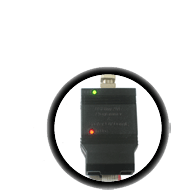
USBtinyISP Using the programmer with AVRDUDE
Using AVRDUDE

AVRDUDE is a very popular command-line program for programming AVR chips. Avrdude 5.5 explicitly supports USBtinyISP! Look below for instructions for windows and mac on how to install the correct version of avrdude!

For a tutorial on how to use AVRDUDE and how to program AVRs, check out my tutorial (which is still in progress)

To test that avrdude is working properly open a command line and run the command avrdude -c usbtiny -p m8 while the device is plugged in (the green LED is lit)

You should get that response, which means that it communicated with the programmer but failed to find a connected chip.

If the programmer is not found, you will get this response:

You can try unplugging and replugging it (a reset may help) or check if the driver is installed, etc.

If you connect the programmer to a target (say an attiny2313 target board) and run avrdude -c usbtiny -p t2313 you should get the following which indicates it communicated properly with the chip.

Using it is simple, just indicate usbtiny as the programmer type. The port option is ignored as it always uses USB.

You can use the -B option to specify the ISP speed. By default the value is 10 which means 100KHz clock, this is good for target clock speeds > 500KHz. If you want the high speed clockrate (400KHz) for target frequencies > 4MHz you can use "-B 1" to speed up programming
To calculate the SPI frequency from the delay value, use this formula:

SPI clock frequency in KHz = 1000/(1.5+B) where B is the delay value

In general, the clock frequency should be at least 4 times larger than the target clock frequency. Try "-B 32" if you're having clocking issues, that should handle even 128khz clocks.

Can't get it working? Dont worry, help is available in the forums!

For Windows

For a tutorial on how to install WinAVR, check out this page which has step by step instructions. Make sure you get the Dec 20. 2007 release or newer. That one has avrdude 5.5 with usbtiny support!

Don't forget to install the driver too (and check the driver page for more info)

For Mac OS X

For a tutorial on how to set up your Mac for AVR programming and development, check out this page which has step by step instructions.

If you install the AvrMacPack, it comes with Avrdude 5.5 and usbtiny is supported out of the box!

otherwise, If you installed OSX-AVR, finish with these steps.

Grab the avrdude zip file from the download page

Replace avrdude and avrdude.conf wherever you have them installed, probably /usr/local/bin and /usr/local/etc but not necessarily depending on your development system!

To find where avrdude was installed type which avrdude into a Terminal window and the directory will pop up. To move the files, type mv ~/usbtiny-avrdude/avrdude <directory> assuming the new avrdude binary is in a folder called usbtiny-avrdude in your home directory.
To find out where the conf file is type avrdude -v into a Terminal window. Do the same thing for avrdude.conf

(Make backups of the old version of course.)

Close the terminal and open a new one. If you type in avrdude -c usbtiny -p t2313 (without the usbtinyisp plugged in) it should say Could not find USB device 0x1781/0xc9f If not, check to make sure properly replaced avrdude and avrdude.conf

Now read about how to use avrdude here!

If that still doesnt work, you should compile it from the source code which is guaranteed to work

For Linux

For a tutorial on how to set up your Linux machine for AVR programming and development, check out this page which has step by step instructions. Make sure you get avrdude 5.5 version or later!

If you get this response, its a permissions problem with USB. You can run as root or....

Thanks to a friendly user, there is a quick fix so you dont have to run it as root:

A udev rule, placed in a new rule file (named whatever you'd like) in /etc/udev/rules.d/ (or wherever you distro will expect it) will set the permissions for the USBtinyISP correctly.

SUBSYSTEM=="usb", SYSFS{idVendor}=="1781", SYSFS{idProduct}=="0c9f", GROUP="users", MODE="0666"

(one line!) should do the trick. Sane does something very similar to
allow regular users to access a scanner.

July 7, 2008 11:26