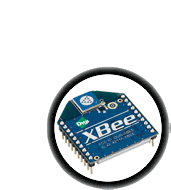
If you have a modern musical instrument, theres a good chance it has a MIDI port. MIDI is an ancient serial protocol that runs at 31.25Kbs, often they come in pairs an Input and Output. Setting up MIDI gear usually requires lots of cabling, tying inputs to outputs across a studio or stage. In this XBee tutorial we'll show how to configure the XBee to talk at the MIDI baud rate, and then how to create a bi-directional wireless MIDI link.

Computer <=> XBee <----//----> XBee <=> MIDI ports
Good for hooking up Processing/PureData/Max to a MIDI device.
For simplicity sake, I will assume you have a Windows machine. I assume that serial port baudrate aliasing can be done on Mac's and Linux but, well, I'll do it later!
You'll want to study the this great MIDI specification website with full MIDI protocol details so that when I say "Note on/off message" you know its a 3-byte packet of data and what each byte is made of!
In case you are wondering, the flight delay time is 6.0 milliseconds with default settings. By setting the packetization timeout to 1 instead of 3, the delay time goes down to 5.5ms
PLEASE NOTE! These instructions are for the Adafruit XBee adapter kit and the Series 1 XBees that are sold in the Adafruit Shop. They may not work for ANY OTHER KIND OF XBEE OR ADAPTER KIT!
This first part is pretty much a 'must' no matter what you're planning to do. We have to configure the XBee(s) to talk at 31,250 baud. That means we need to be able to talk to the XBee at that baud rate in order to configure it, say with our handy FTDI cable. Now unfortunately this isn't a default baud rate under Windows (a major oversight, it seems). Instead we have to do a little trick called baud rate aliasing where the driver is running at 31,250 but the computer thinks its talking at 38,400 baud, a default baud rate. Note that this is very dumb but hey, thats Windows.
Unplug your FTDI cable and any FTDI devices like arduinos, USB-serial converters, GPS's, and the like.
Download FTClean, the driver-cleaner utility from FTDI. Uncompress and run FTClean.exe

Click the three windows to verify that you Really Want To Do This. The computer will hang for a few seconds while the drivers are uninstalled. It'll then look like this

Now you're ready to -reinstall- the FTDI driver that aliases 38,400 baud to 31,250 baud.
You can download the edited driver here note that its called the MIDIfied driver. Uncompress it onto the Desktop.
Now plug in your FTDI cable again. The Windows driver detection window will pop up.

Select No, not this time and click Next

Select Install from a list or specific location (Advanced) and click Next

Select Search for best driver in these locations. Then uncheck Search removable media and check Include this location in the search: then click Browse and navigate to the uncompressed MIDIfied FTDI driver folder. Click Next

If it complains about Windows Logo testing, click Continue Anyways

OK! You may have to do this again, since there seems to be two parts of the driver. Just repeat, making sure to install the MIDIfied FTDI driver
If you haven't updated your XBee's firmware, you should do that now. Remember that you are still going to connect to the XBee at 9600 baud cause its fresh-outta-the-box
Now comes the magic. We're going to connect to the fresh XBee at 9600 through a terminal (I'm going to use the terminal built into XCTU but of course any terminal program is OK)
Then we're going to set the baud rate to a special value. By default the XBee can talk on the standard rates, like 2400, 9600, 57600, etc. However it is possible to make it talk a special rate by passing the hexidecimal value to ATBD. For example, if you want 31250 baud, convert that number to hex -> 7A12. Set the XBee by giving it the command ATBD7A12. Then check again to verify its 7A12! Finally, write it to flash with ATWR.
Note that once you write it to flash you can only talk to the XBee at that baud rate so you must be sure that you have the MIDIfied FTDI drivers installed because otherwise you wont be able to communicate with the XBee anymore!

OK now you have set the XBee to 31250 communication. You can hard reset the XBee by un/replugging the adapter. Test that you did things right by trying to connect to the XBee again, now at 31250. Remember that you have to select 38400 as the connection baud rate because that is aliased to 31250.

Label your MIDI XBee cause you'll need to keep track of it. Now its time to build the hardware to connect DIN-5 MIDI jacks to the XBee.
| Adafruit XBee Adapter | 1 | |||||||||
![]() |
XBee module Series 1 either 'standard' or 'pro |
Adafruit | 1 | |||||||
![]() |
MIDI connector |
Digikey Mouser |
2 |
|||||||
MIDI Optocoupler |
1 | |||||||||
|
220 ohm resistor 5% 1/4W Red - Red - Brown - Gold |
Digikey |
4 |
|||||||
![]() |
CMOS Hex inverter |
Mouser Digikey |
1 |
You'll also need a source of ~5V. I suggest a 4AA battery holder. And something to build it on. I'm using a half-sized solderless breadboard.
We'll be building this, click for a larger version
Note that a big chunk of it is on the XBee adapter. MIDI isnt that voltage sensitive (it uses current not voltage) so the 5V supply doesn't need to be precise. It can vary a bit which is why using 4 AA's (varies from 4.8V to 6V) and it's just fine.
We'll do a simple test to make sure that we have the XBee wired up correctly. Get your FTDI cable, and connect it to your other XBee and adapter
This XBee should also be firmware updated but it doesn't have to be set to 31250 baud! Thats because the XBee transmits wireless data in its own ZigBee protocol, not plain serial. You can have one XBee communicating at 31,250 baud and another at 9600 baud and they'll pass data back and forth just fine. Anyways. Connect up to XBee using X-CTU or use another terminal. I suggest a terminal program that lets you see hex values for transmitted data which is why X-CTU is pretty rad
Make sure your MidiBee bread board is powered, the green LED on the xbee adapter should be blinking. Connect a MIDI out from a musical instrument, MIDI adapter, etc to the MIDI in on the breadboard. Send a MIDI message, say by pressing a key on the MIDI keyboard. You should see the RSSI (red) LED on the XBee connected to your computer light up as it is receiving a message!
If you look in your Terminal, you'll see the MIDI messages show up. These are NOTE ON and NOTE OFF messages.

Don't forget, you should connect to the computer-XBee at whatever baud rate that XBee is set to. If its still at factory-default 9600, connect at 9600. If you also 'MIDIfied' it, connect at 38400 (aliased to 31250)
Now its time to test sending MIDI data out via the XBee. You can use X-CTU terminal to connect to the XBee and click on Assemble Packet. Then select HEX display/entry and type in 90 32 64 this is a note on message. Click Send Data. You should see the RSSI (red) LED on the MidiBee breadboard light up indicating it received the packet. If you connect a synth to the MIDI out it will play a note (well, assuming its set to MIDI address 0, you should craft the Note On message as necessary to set the address)

If you use software such as Max or PD or Processing (or even python, etc), you can also now send MIDI messages by opening the serial port at whatever baud rate you've set up the XBee. For example, here is a quick sketch. You may need to change the name of the Serial port from "COM3" to whatever.
import processing.serial.*; Serial myPort; // A little helper void sendMIDI(int command, int data1, int data2) { myPort.write(command); myPort.write(data1); myPort.write(data2); } void setup() { // List all the available serial ports: println(Serial.list()); myPort = new Serial(this, "COM3", 9600); // Send a Note On message, then a Note Off message sendMIDI(0x90, 0x32, 0x64); // D note on, 64 velocity delay(1000); // one second sendMIDI(0x80, 0x32, 0x64); // D note off, 64 velocity }
Check that your MIDI synth is getting the messages.
Sweet! You now have a wireless MIDI setup for sending and receiving data from any computer

OK sure you can send messages to your MIDI device via the serial port. But there's an awful lot of programs that are going to require that you use a real MIDI device. What now? Well luckily, the nice fellows at KORG have designed a Windows driver that turns a COM port into a proper MIDI device!

You can download it here, its called Midi Driver PCIF-NT for Windows NT/2000/XP it seems to not work with Vista, sorry
Follow the instructions in the MANUAL.HTM file included in the zip file

Make sure the FTDI cable is set to COM2, 3 or 4 because the driver can't cope with higher numbers. You can set the FTDI cable's COM port in the Device Manager. Set the KORG driver to the correct COM port.

Now you should have the KORG MIDI driver device in the Device Manager

Now you can use somthing like MIDIOX (or any other program that can talk to MIDI ports) to communicate with the XBee/MIDI link